

Create the queries
Section titled “Create the queries”A query is a saved filter. You create two on Support Tickets:
| Query | Condition | Used by |
|---|---|---|
| Closed tickets | Ticket status Equal Closed | Looking up finished tickets; a quick check of the workflow’s end state |
| All tickets | Ticket status Is filled — every ticket has a status, so this matches every ticket | The monthly Performance Report, which must be based on a query |
-
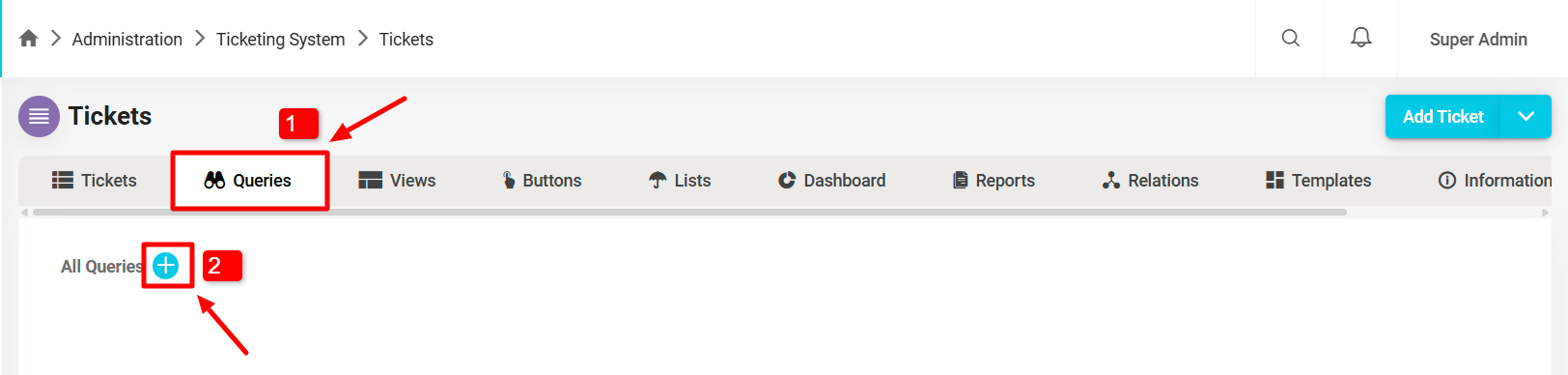
Open the Support Tickets entity, select the Queries tab, and select + (New Query).
-
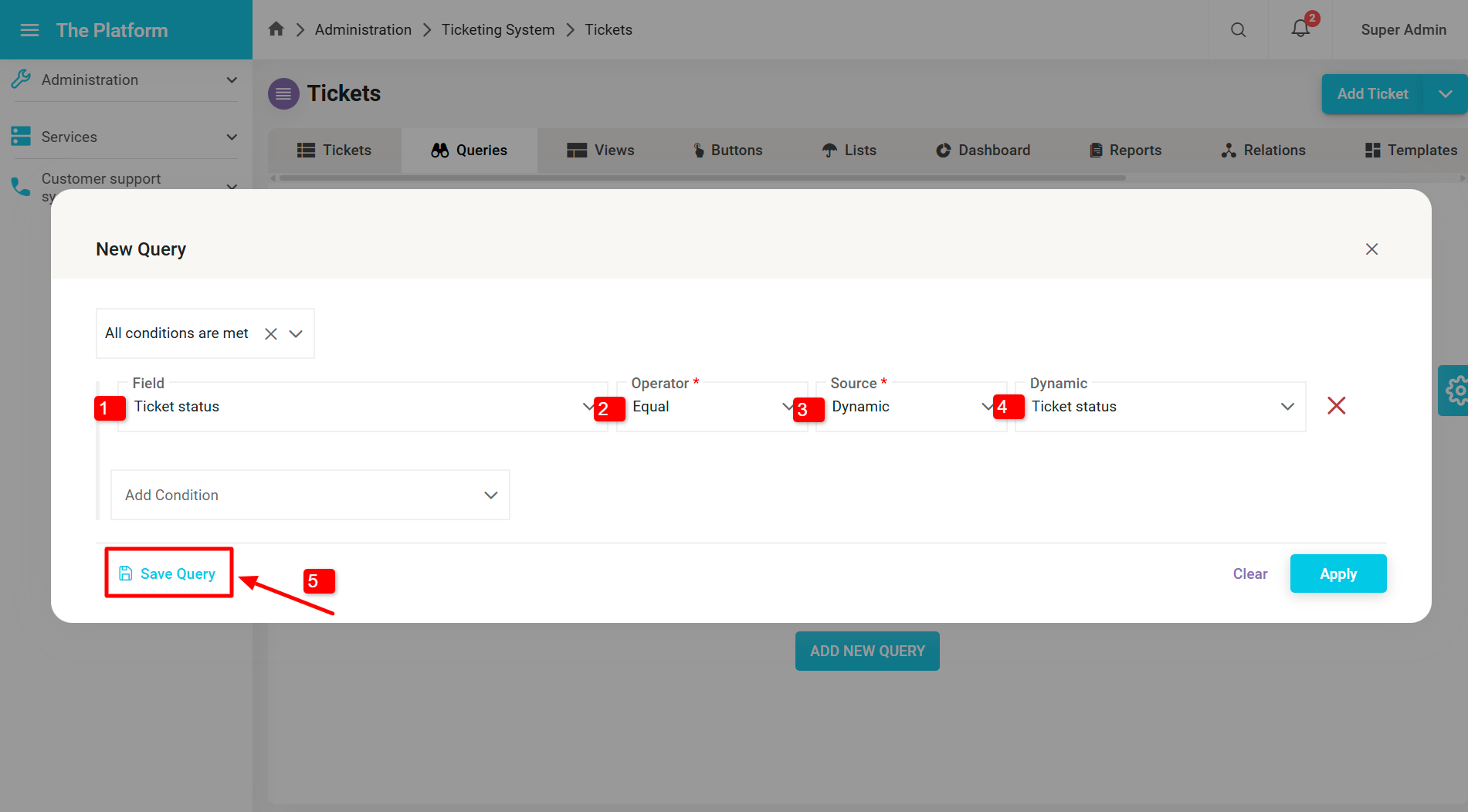
Keep All conditions are met. Select Condition and set:
- Field — Ticket status.
- Operator — Equal.
- Value — Fixed, Closed.
In the field lists, a block appears as its inner fields: Service evaluation as Evaluation score and Comment, and Solution as Solution.
-
Under Query Settings, enter the Query Name Closed tickets, then select Save Query.
-
Repeat for All tickets, with the condition Ticket status Is filled (it needs no value).
Check: on the Queries tab, select Apply query next to each query and compare the lists.
Queries can also follow the person looking (@me), ask for a value when they run, or become quick filters — see Queries.
Next: Build the views.
Platform 1.10.0 · Backend 1.11.0-alpha.11 · Frontend 1.11.0-alpha.6 · Mobile 1.10.2 · Chart 1.11.8 · Gateway 2.6.11 · MCP 0.2.0 · Grafana DS 1.2.0Docs build 2026-11-27