Skip to content

Every hand-over in the workflow should tell the next person that a ticket is waiting for them. You add seven reactions, all of the same kind: when the ticket reaches or leaves a workflow step, send an in-app notification.

Tutorial · Part 4 of 8Seven notificationsTell each person when a ticket reaches them · 2:08 · Recorded on OSOS 1.11.0-alpha.1 · About this video
  1. Open the Support Tickets entity and select the Reactions tab.
  2. Select + (or Add Reaction). The New Reaction dialog opens.
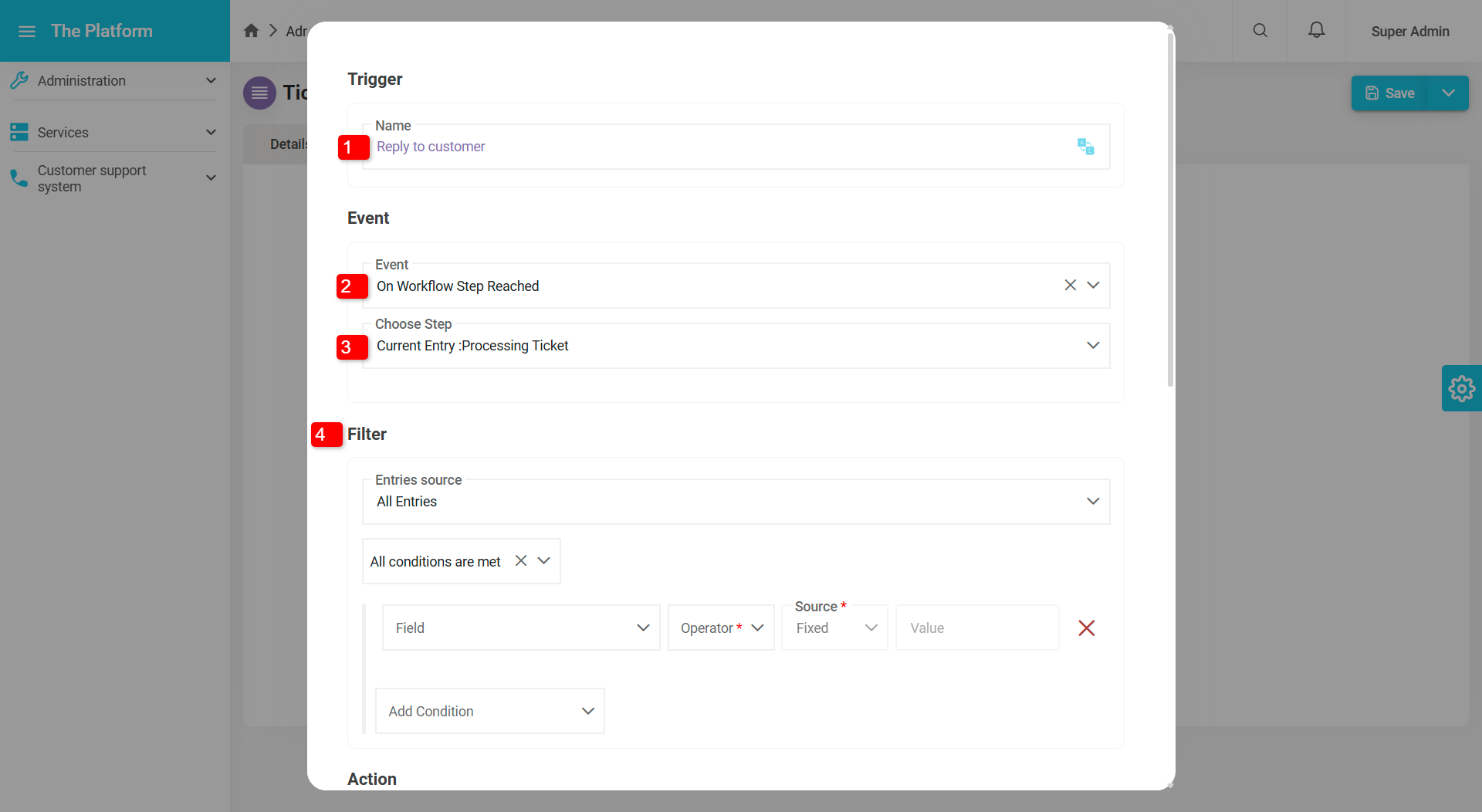
  3. Fill in the settings from the reaction’s table below:
    • Name.
    • Event — On Workflow Step Reached or On Workflow Step Exited — and, in Choose Step, the step. For On Workflow Step Exited, pick the step together with the action it was left by, for example Processing Ticket (Review Solution).
    • Leave Filter empty.
    • Action Type Send Notification, with Channel Type In App, the Title and the Content.
    • Under Custom Variables, add the variable id with Type Field and Map to Ticket number, so {{id}} in the title shows the ticket’s number.
    • Under Recipients, the Source, Type and Value.
  4. Select Save.

The New Reaction dialog for "Reply to customer": event On Workflow Step Reached, step Processing Ticket

All seven use Action Type Send Notification, Channel Type In App and the Title Ticket Number {{id}}.

1. New Ticket — tell the desk a ticket has arrived

Section titled “1. New Ticket — tell the desk a ticket has arrived”
SettingValue
EventOn Workflow Step Reached
Choose StepHelp Desk
ContentNew ticket arrived
RecipientsGroup · Fixed · Technical Support Office

2. Reply to customer — confirm the ticket was received

Section titled “2. Reply to customer — confirm the ticket was received”
SettingValue
EventOn Workflow Step Reached
Choose StepProcessing Ticket
ContentYour request has been received
RecipientsUser · Field · Created by

3. New ticket assigned to you — tell the representative

Section titled “3. New ticket assigned to you — tell the representative”
SettingValue
EventOn Workflow Step Reached
Choose StepProcessing Ticket
ContentTicket assigned to you
RecipientsUser · Field · Assigned to

4. Review Solution — ask the desk to review the answer

Section titled “4. Review Solution — ask the desk to review the answer”
SettingValue
EventOn Workflow Step Exited
Choose StepProcessing Ticket (Review Solution)
ContentPlease review the solution
RecipientsGroup · Fixed · Technical Support Office

5. The solution has been reviewed — tell the representative

Section titled “5. The solution has been reviewed — tell the representative”
SettingValue
EventOn Workflow Step Exited
Choose StepHelp Desk (Send Solution)
ContentSolution has been reviewed
RecipientsUser · Field · Assigned to

6. Ticket Resolved — send the customer to the solution

Section titled “6. Ticket Resolved — send the customer to the solution”
SettingValue
EventOn Workflow Step Exited
Choose StepHelp Desk (Send Solution)
ContentYour request has been resolved, please review it
RecipientsUser · Field · Created by

7. Service Evaluation — tell the desk the customer has rated

Section titled “7. Service Evaluation — tell the desk the customer has rated”
SettingValue
EventOn Workflow Step Exited
Choose StepService Evaluation (Done)
ContentService evaluation is done, click to see it
RecipientsGroup · Fixed · Technical Support Office
  • Reached or exited? Use On Workflow Step Reached to tell the person who must act next. Use On Workflow Step Exited with a specific action when the message depends on the decision taken — reactions 5 and 6 fire only when the desk chose Send Solution, not when it closed the ticket.
  • Moving a ticket to another step is not an update. A reaction on On Entry Updated does not run when the ticket moves through the workflow; use the workflow events.
  • One reaction, one action. Reactions 5 and 6 share an event but send to different people with different messages, so they are two reactions.

Reactions can also send email or SMS, update the ticket or another record, or call another system — see Reactions & automation.

Next: Create the queries.

Platform 1.10.0 · Backend 1.11.0-alpha.11 · Frontend 1.11.0-alpha.6 · Mobile 1.10.2 · Chart 1.11.8 · Gateway 2.6.11 · MCP 0.2.0 · Grafana DS 1.2.0Docs build 2026-11-27