

Employees Entity
Section titled “Employees Entity”The Employees entity keeps the record of each new employee. The job application service creates the record for you when a candidate signs their contract.
- Note: this page gives only what is specific to the Employees entity: its settings, structure, workflow and reactions. For the step-by-step screens, follow the Jobs entity page.
Create the Employees entity
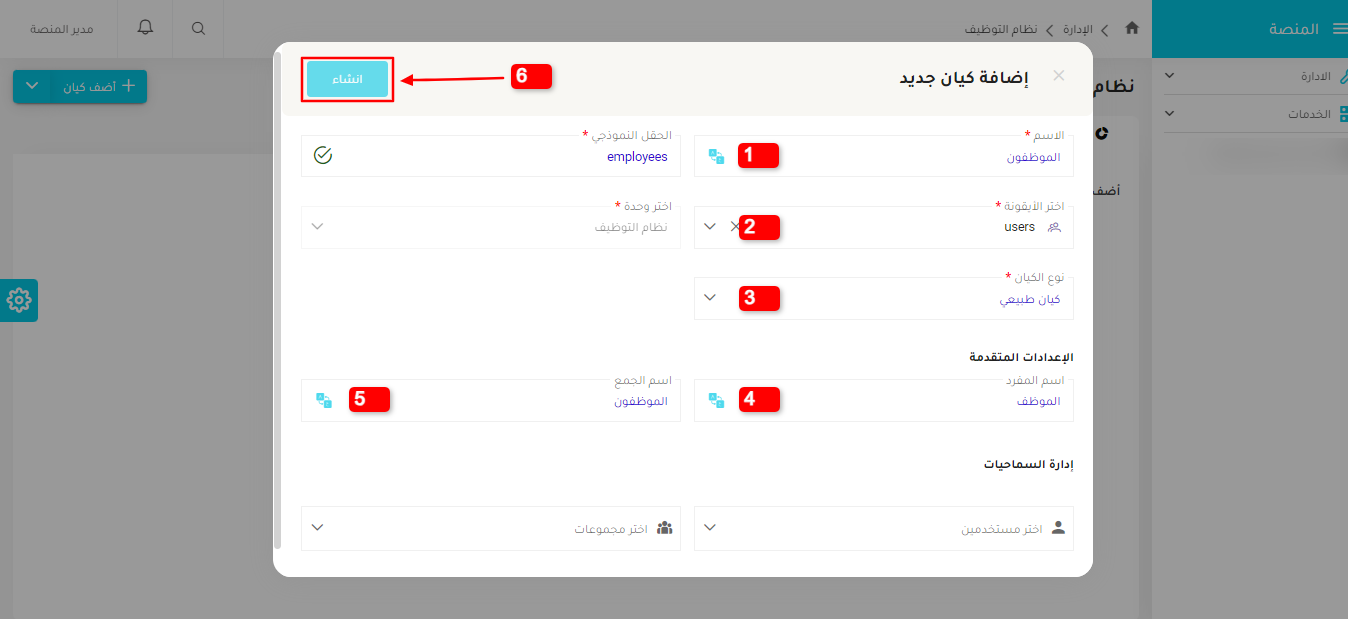
Section titled “Create the Employees entity”- Name: Employees, in Arabic and English.
- Select Icon: id-card.
- Data Entity Type: Normal Entity.
- Under Field Settings: Single Name Employee and Plural Name Employees.
Structure
Section titled “Structure”-
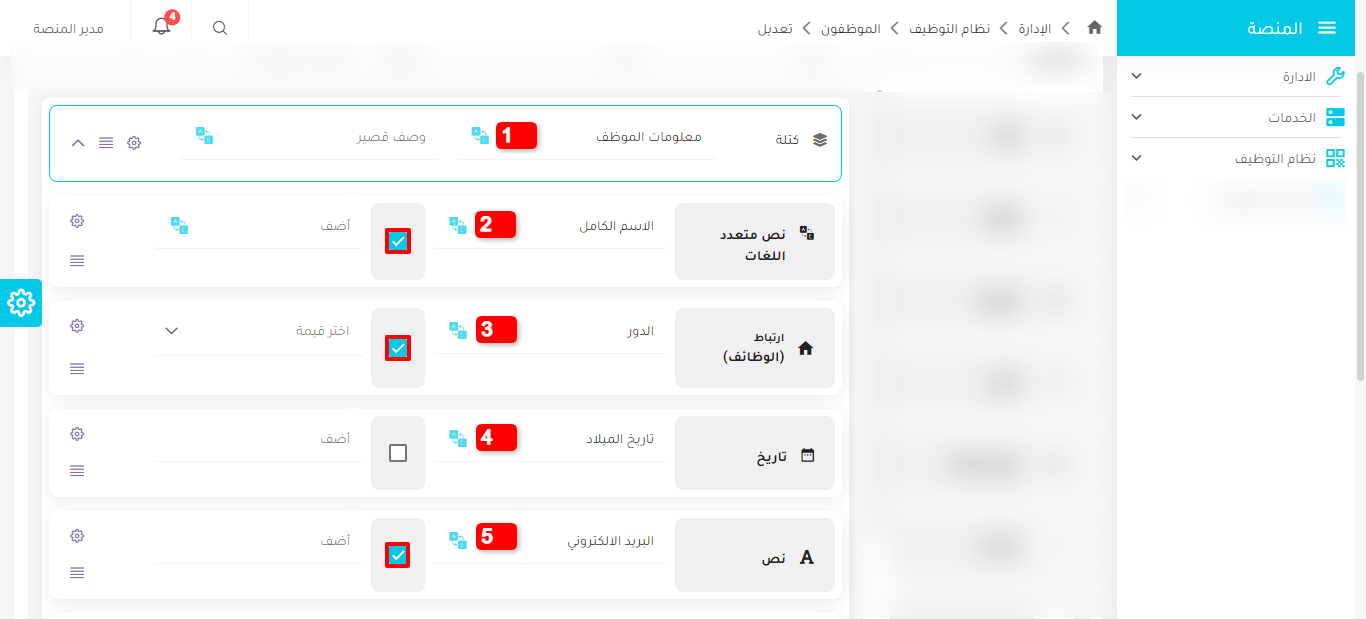
Employee information block:
- Full name: required, Localized Text.
- Date of birth: optional, Date.
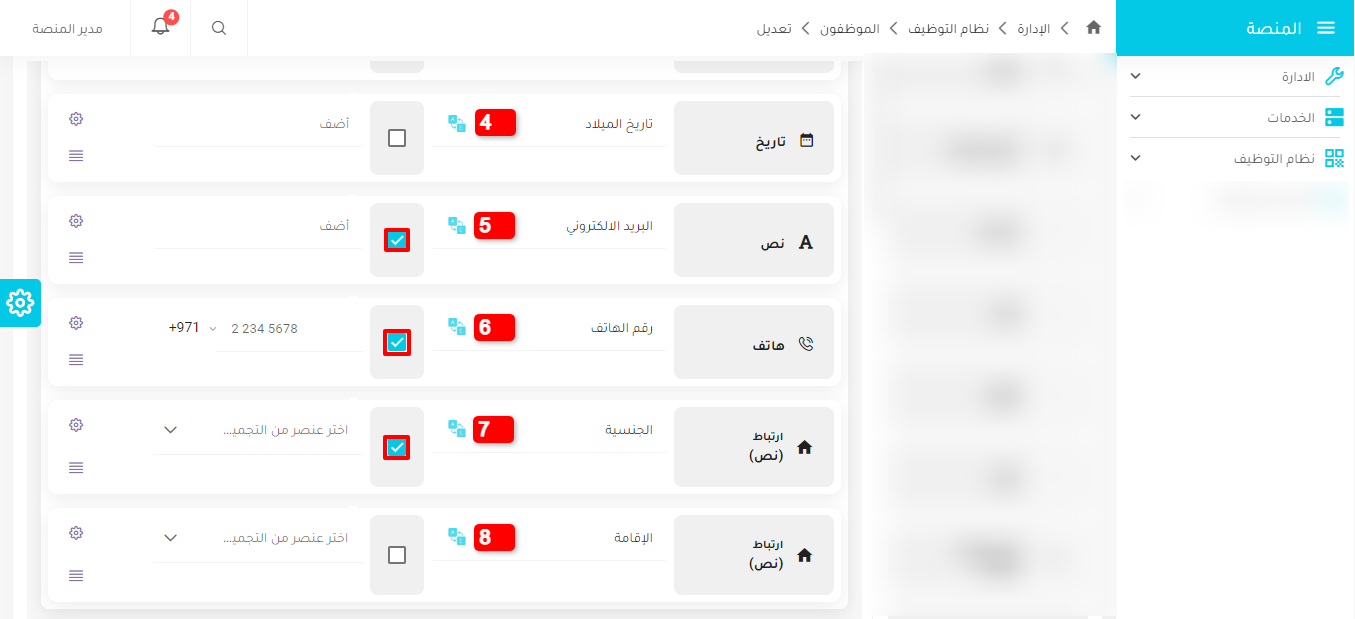
- Email: required, Text.
- Phone number: required, Phone.
- Nationality: required, Reference to the Nationalities list.
- Residence: optional, Reference to the Residence list.
- Education: optional, Reference to the Educational qualifications list.
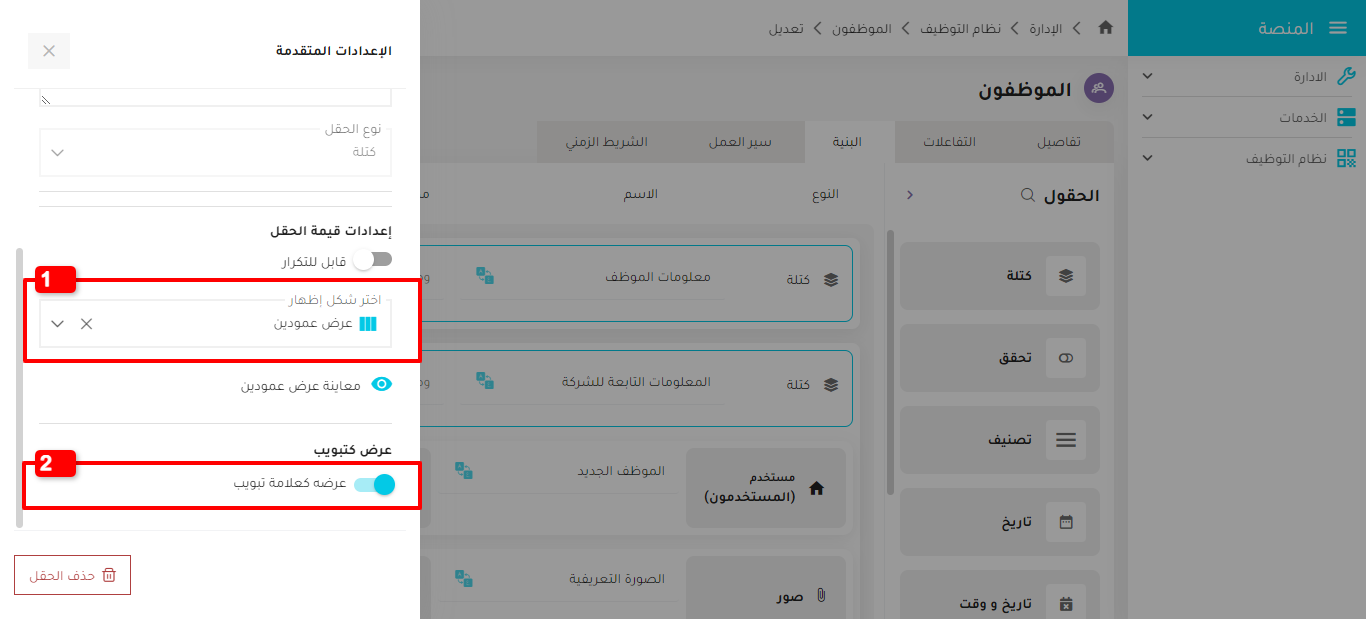
- Open the block’s settings, set it to show its fields in two columns, and turn on Display as tab:
-
Company information block:
- Company email: optional, Text.
- Profile photo: optional, Image.
- Signed contract: optional, File.
- Passport / ID card: optional, File.
- New employee: optional, User. The employee’s own account; the job application fills it in, and the Upload profile photo step goes to this user.
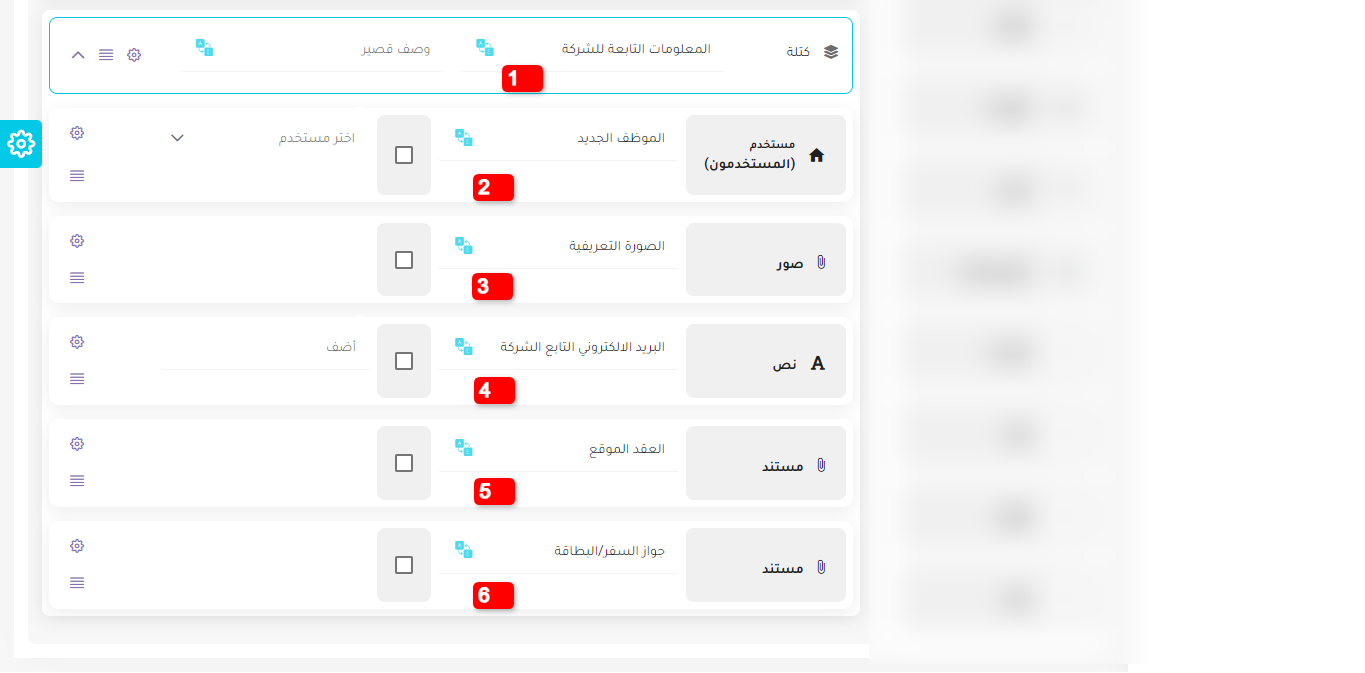
- Open the block’s settings, set it to show its fields in two columns, and turn on Display as tab:
-
Select Save at the top of the page to keep your changes.
Workflow
Section titled “Workflow”Step 1: Initial Step
Section titled “Step 1: Initial Step”- Name: Initial Step
- Actions:
- Start (to the next step)
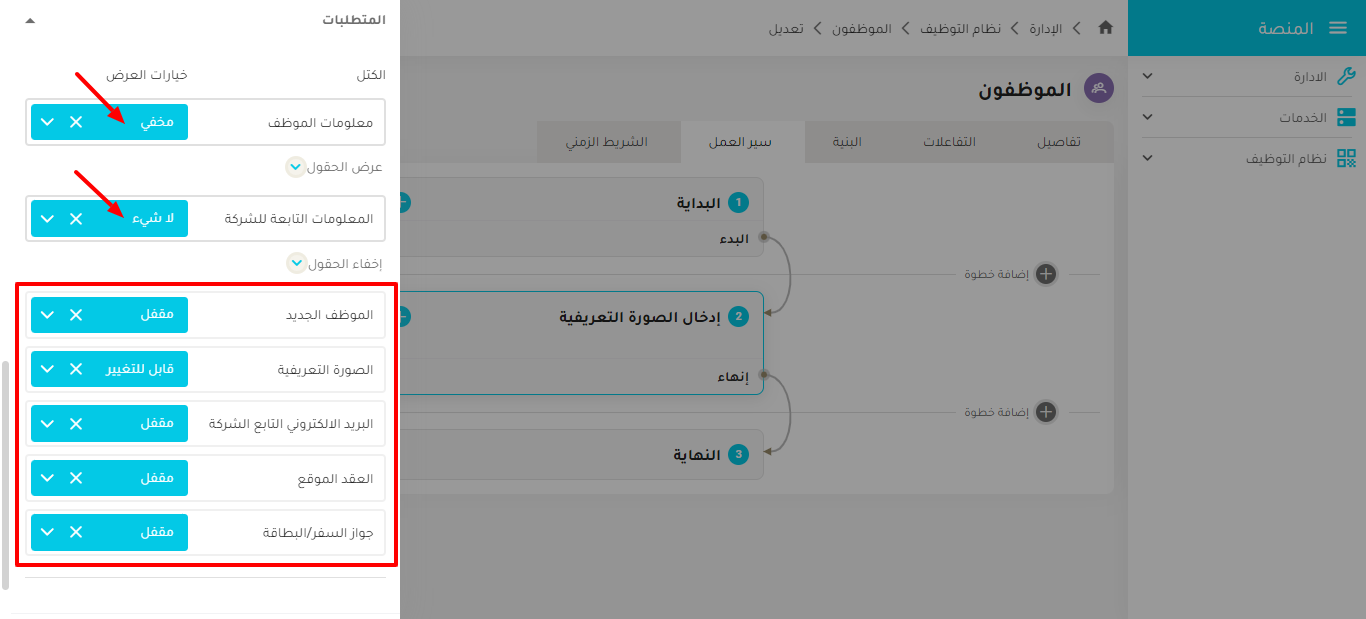
Step 2: Upload profile photo
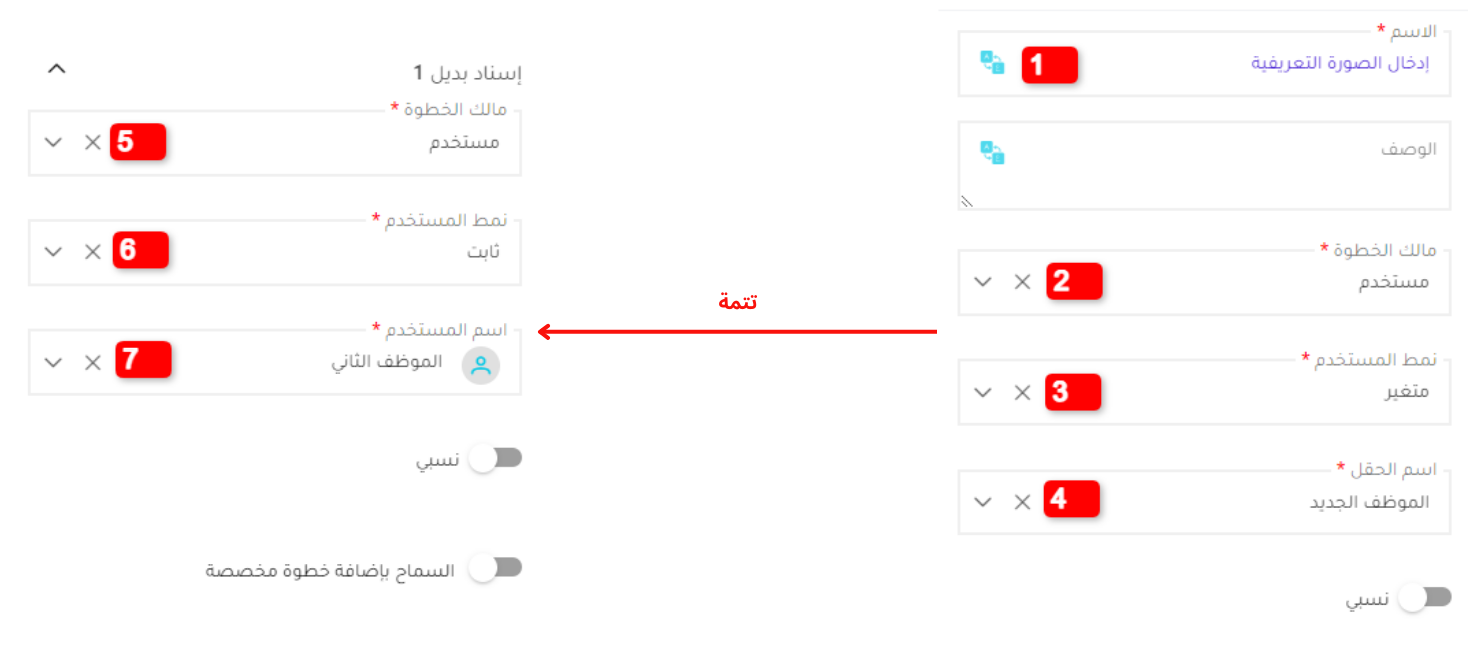
Section titled “Step 2: Upload profile photo”- Name: Upload profile photo
- Owner: the new employee: Step Owner User, User Type Field, the New employee field, and the fixed fallback user HR Manager for a record whose field is empty.
- Actions:
- Finish (to the final step)
Step 3: Complete Step
Section titled “Step 3: Complete Step”Reactions
Section titled “Reactions”-
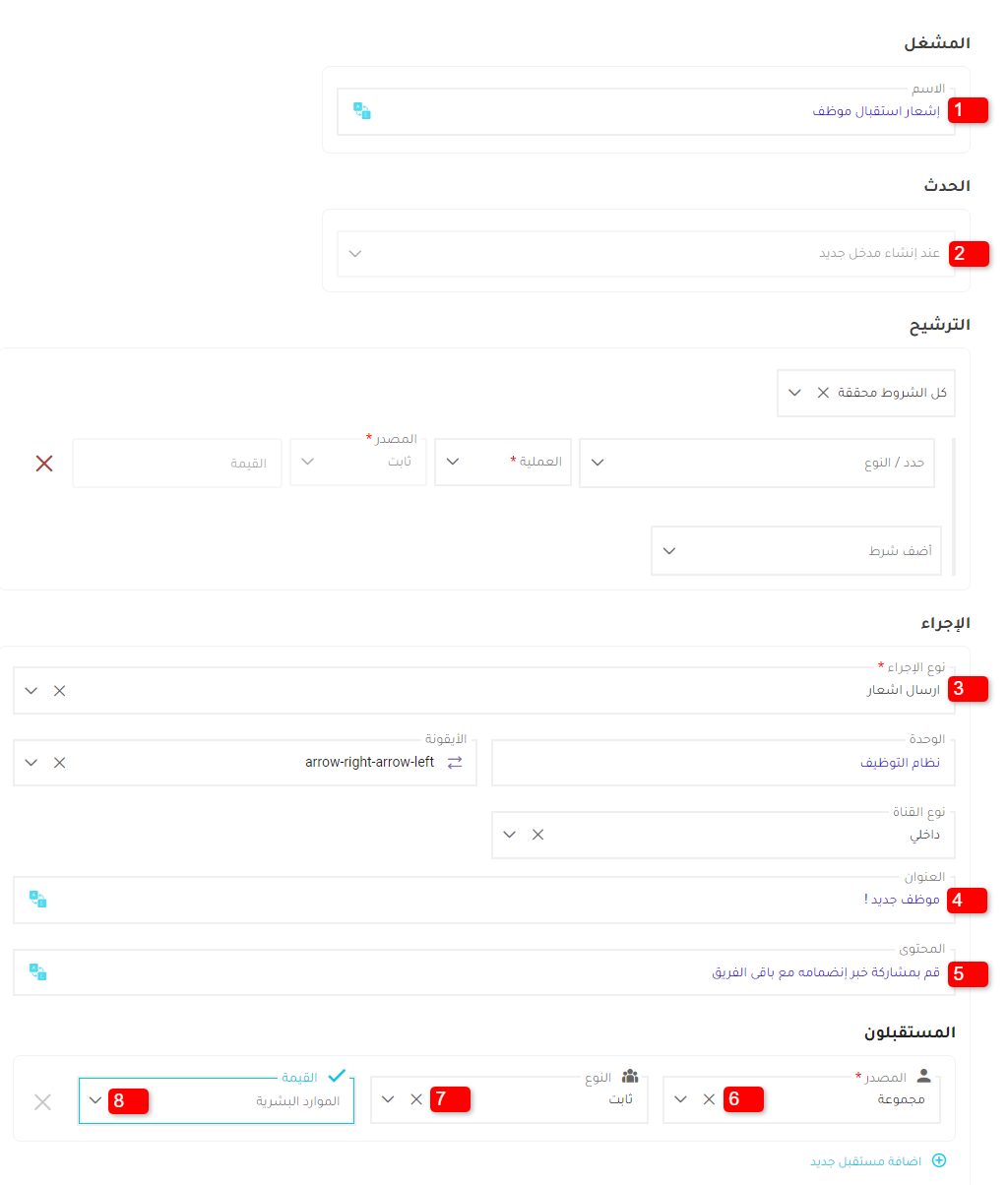
New employee notification
- Event: On Entry Created
- Action: Send Notification
- Recipients: the HR group
-
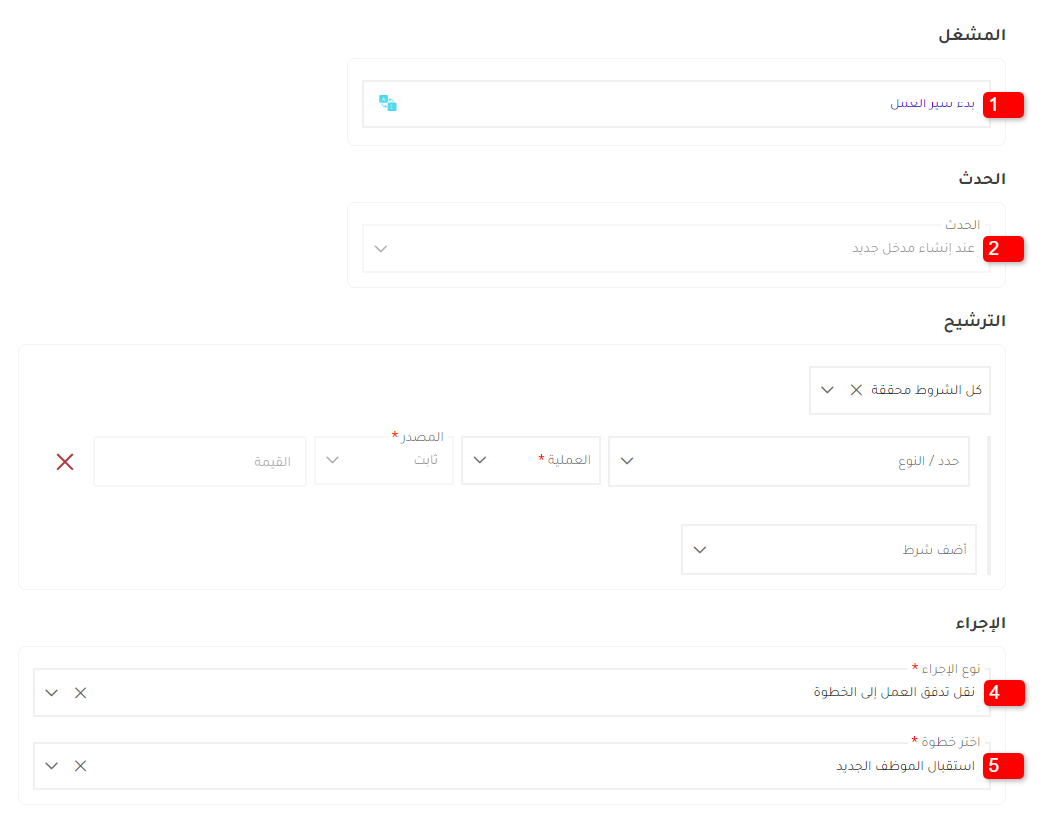
Start the workflow
- Event: On Entry Created
- Action: Move Workflow To Step
- Step: step 2, Upload profile photo
-
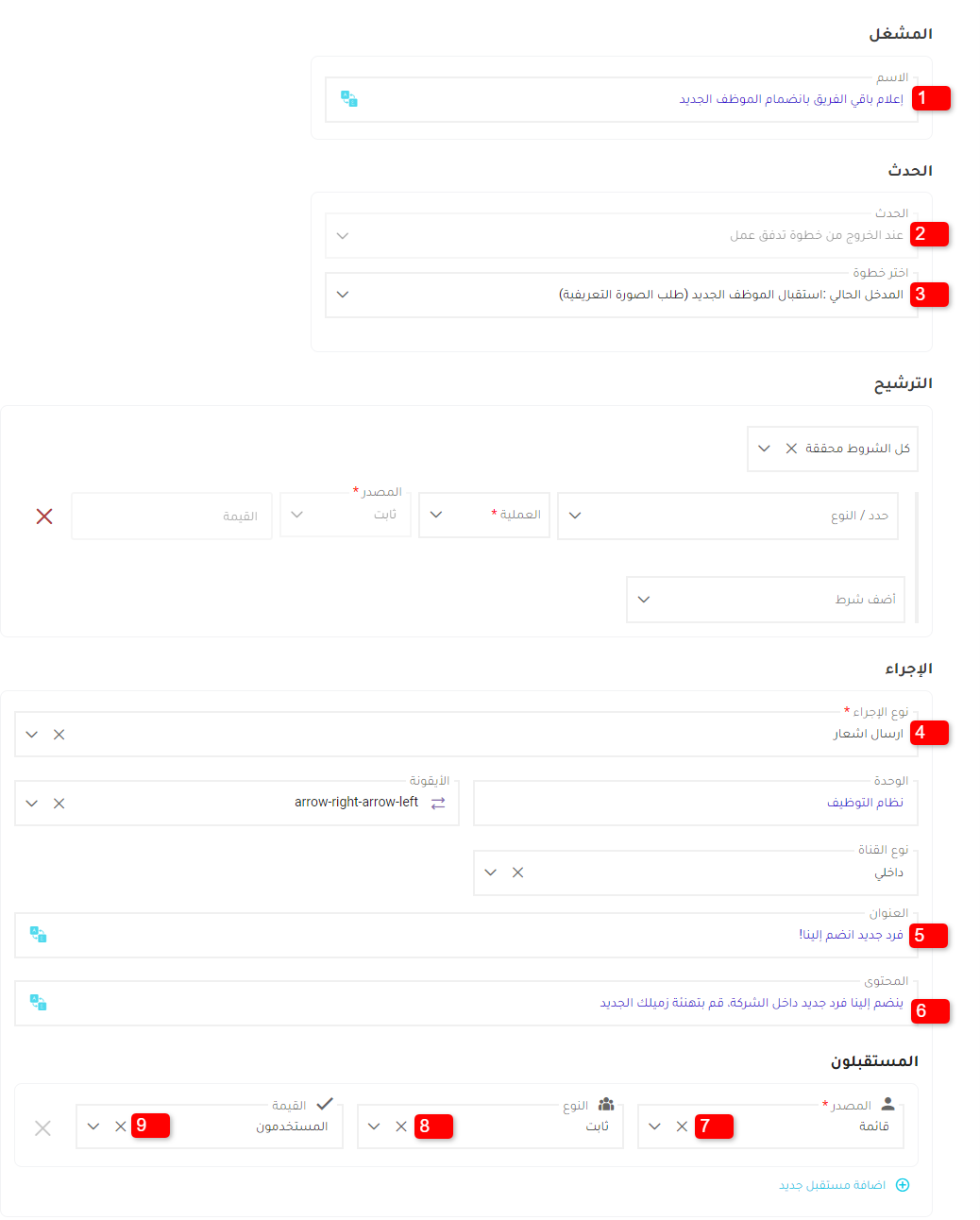
Tell the rest of the team about the new employee
- Event: On Entry Created
- Action: Send Notification, for example A new colleague has joined us!
- Recipients: the HR group. The screenshot shows a variant that runs when the profile-photo step is finished and notifies a list of all users.
Platform 1.10.0 · Backend 1.11.0-alpha.11 · Frontend 1.11.0-alpha.6 · Mobile 1.10.2 · Chart 1.11.8 · Gateway 2.6.11 · MCP 0.2.0 · Grafana DS 1.2.0Docs build 2026-11-27